Table of Contents
Introduction
A module with cybersecurity blocks Start App, Stop App, Restart Module and Start Flashing until the Flasher is authenticated. The authentication is done once per session with the authentication private key.
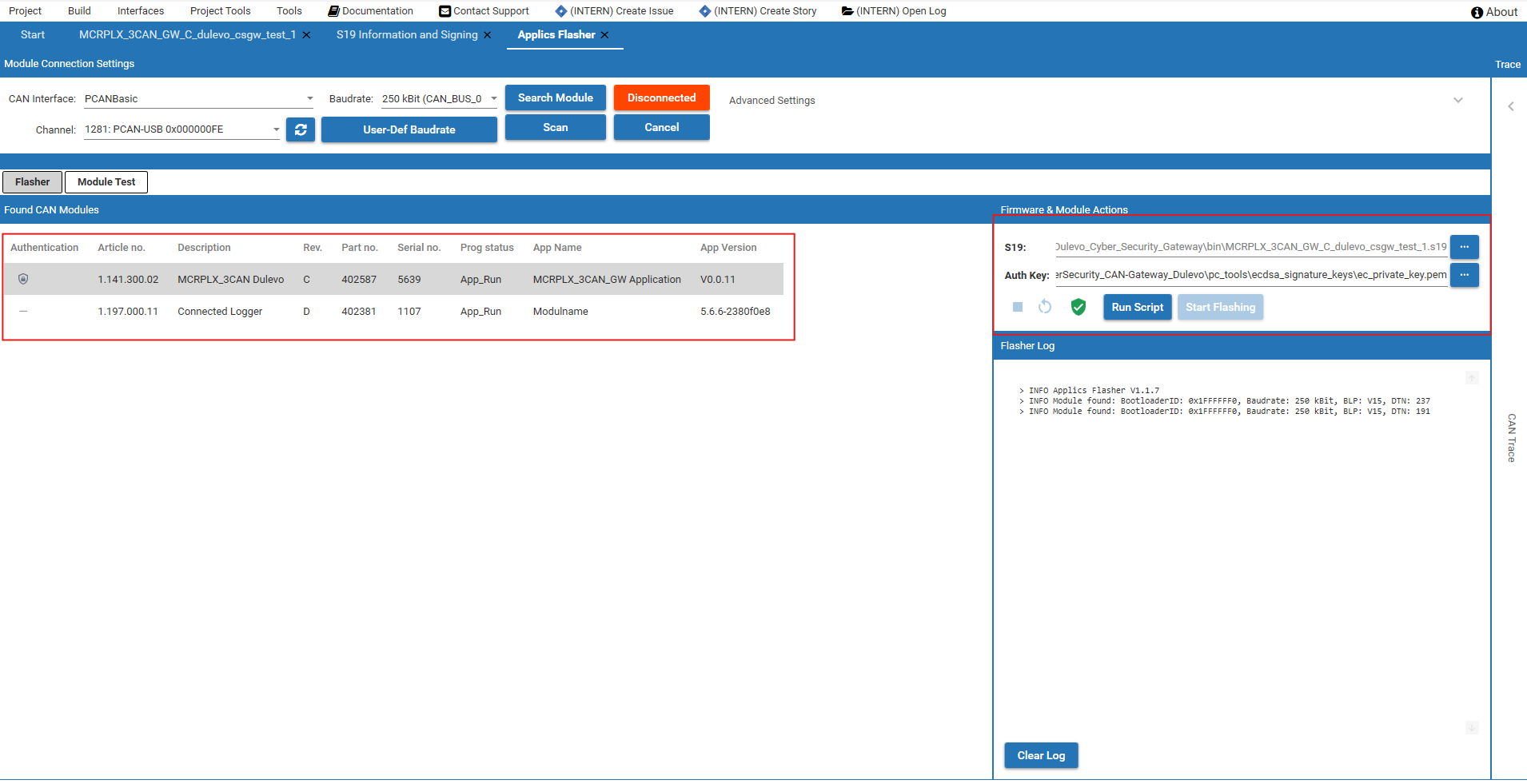
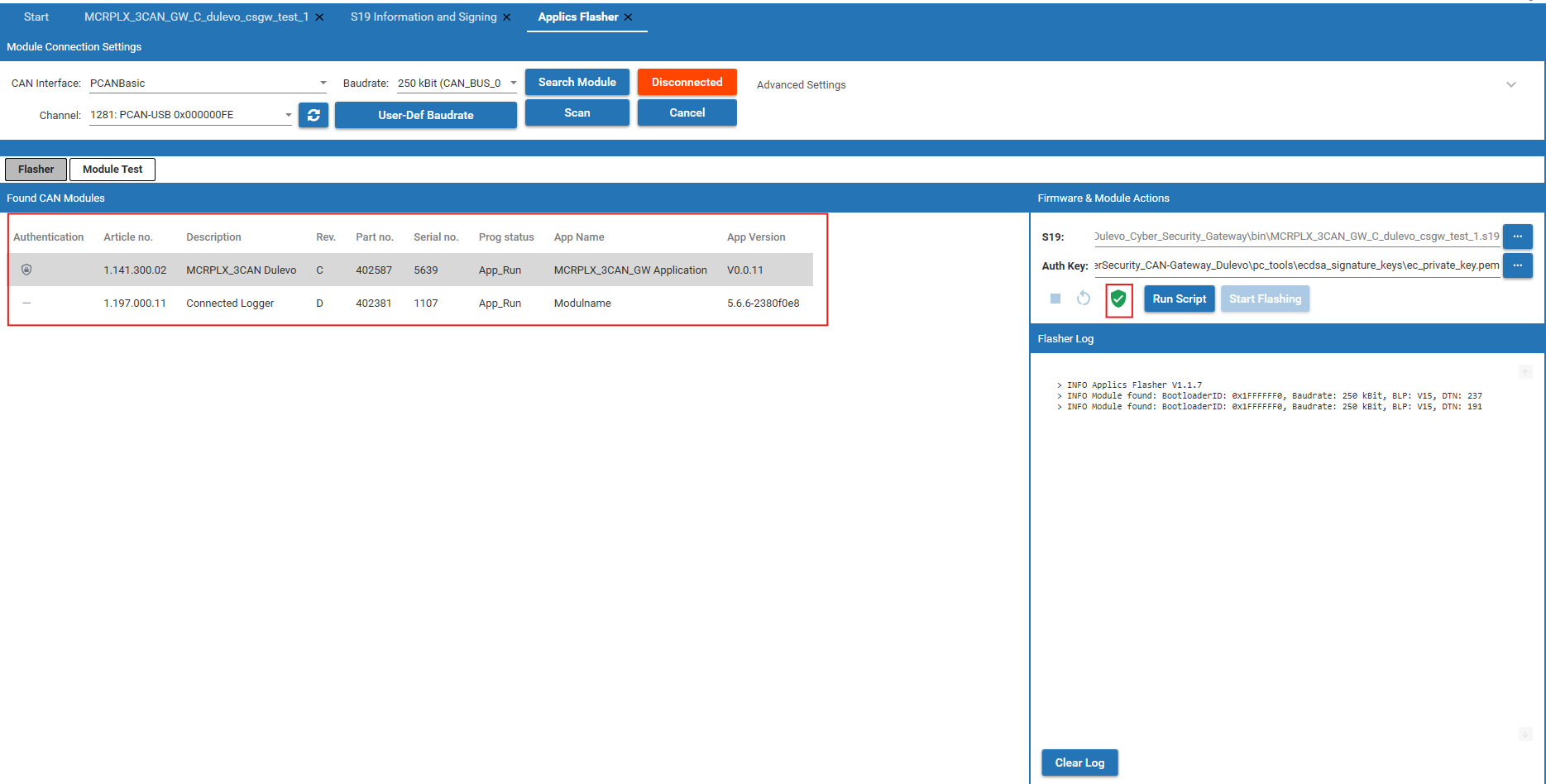
The authentication state is shown as an icon. The text is in the tooltip, so hold the mouse over the icon to read it.
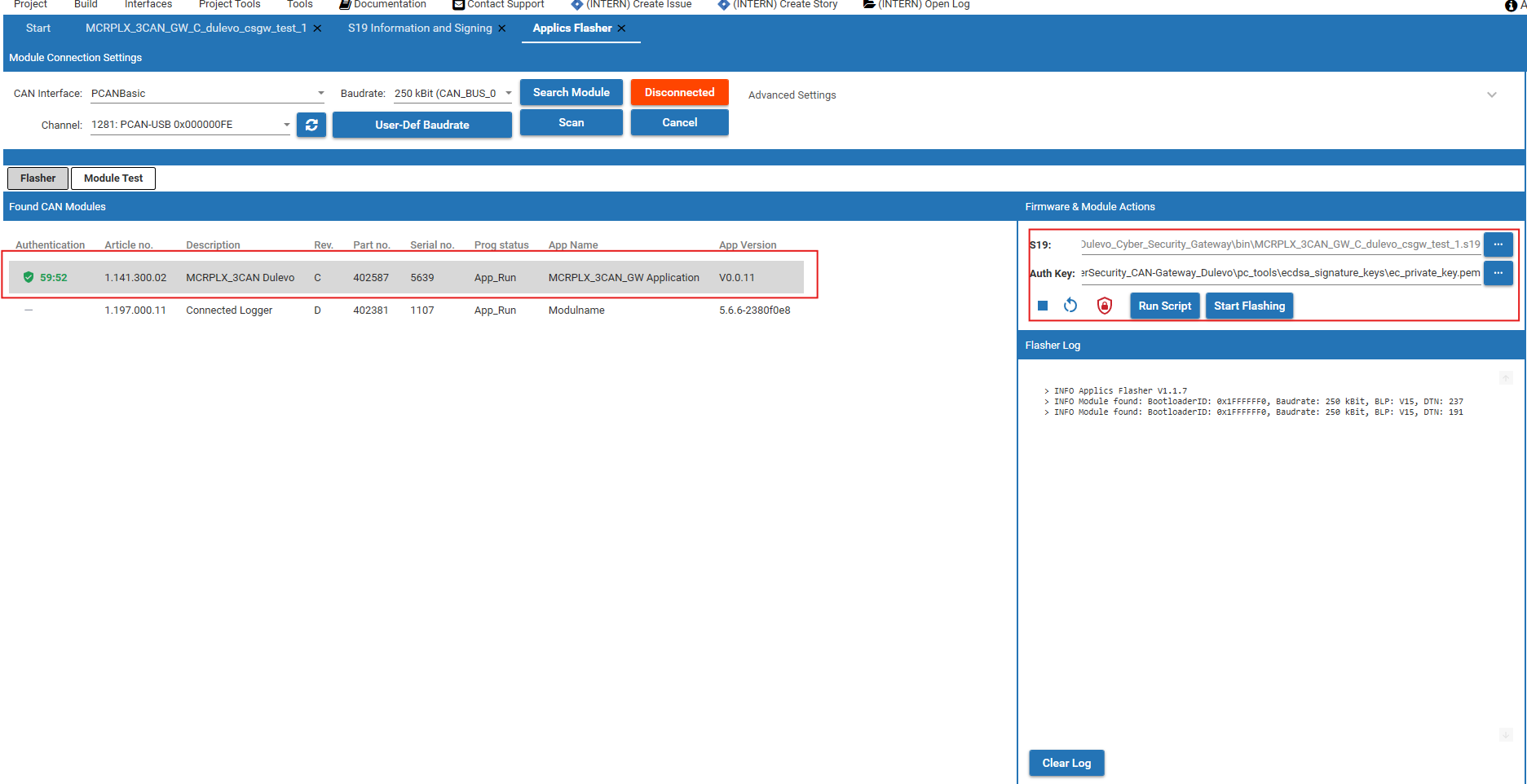
 Authenticated - The authentication is valid, the module actions work.
 Not authenticated - Cybersecurity module, you still have to authenticate.
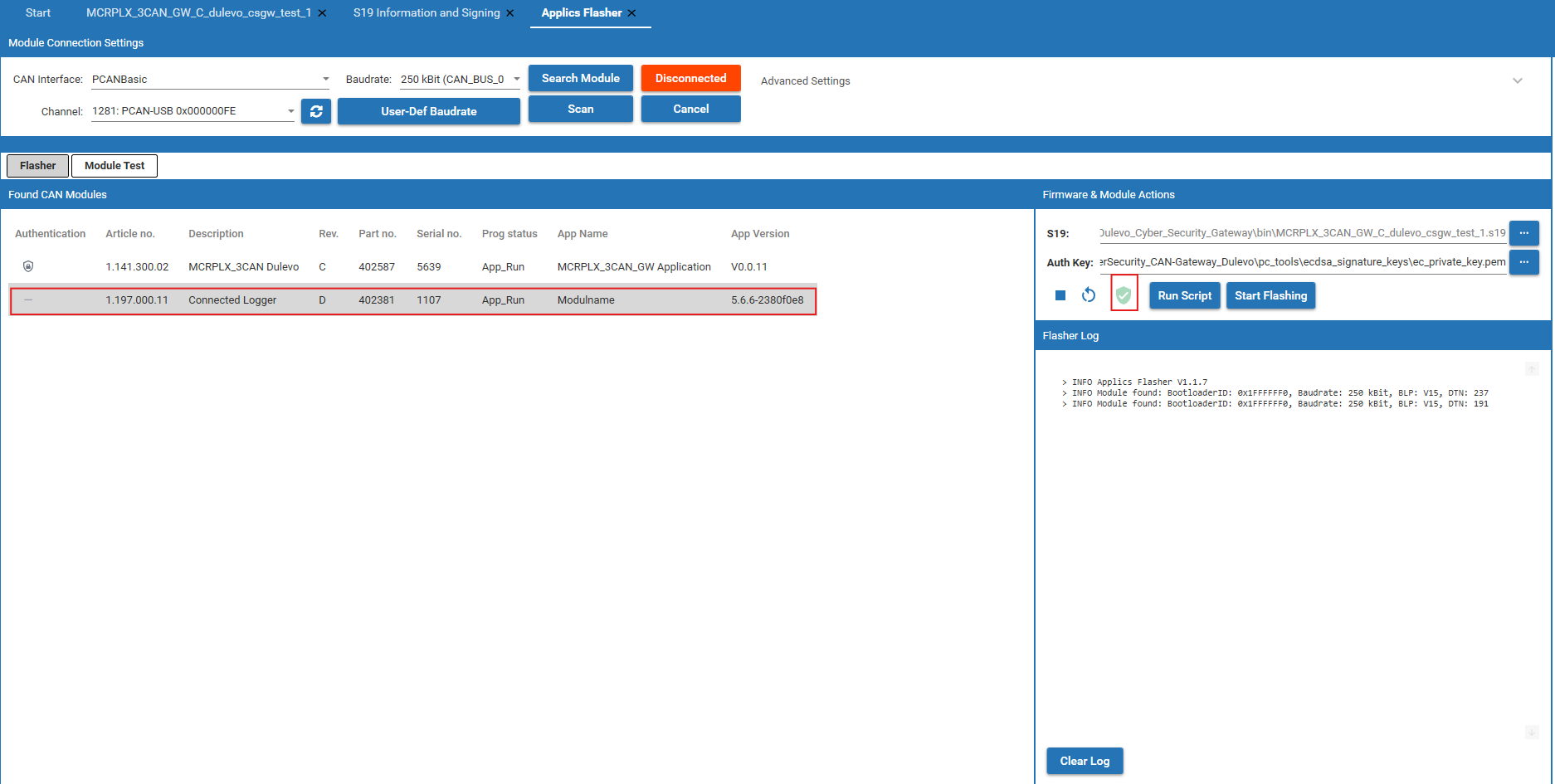
 Module without Cyber Security - The module has no cybersecurity. You do not need to authenticate and the Authenticate button stays grey.
Authenticate a Module
- Open
Applics Flasher (F3) - Select CAN channel, baudrate and scan for modules. The modules that were found are listed under
Found CAN Modules - Select a module to authenticate.
Authenticationcolumn shows the actual state - Check the field
Auth Key:in the panelFirmware & Module Actions. It is already filled with the authentication key of the project. You can also press the folder button and select a key file (*.pem,*.key,*.txt), or paste the PEM text of the key directly into the field - Press
Authenticate
If it works, the status bar shows “Module authenticated successfully.”, the shield in the Authentication column turns into a green shield with a check, and a countdown like 59:52 appears next to it. Start App, Stop App, Restart Module and Start Flashing are enabled now.
A module without cybersecurity can be flashed, started, stopped and restarted right away. In the picture below the Connected Logger is selected, the Authenticate button is grey, but Start Flashing still works.


How long the authentication stays valid is defined by the module, not by Applics Studio. The countdown in the Flasher is only an assumption of 1 hour, so the module can already refuse the access while the countdown is still running. The authentication is also gone when the module gets a power cycle, is disconnected or you scan again. In all these cases you have to authenticate again.
Stop the Authentication
If you want to stop earlier, press Deauthenticate. That is the same button as Authenticate, it always shows the state that your click leads to.
 Deauthenticate
 Authenticate
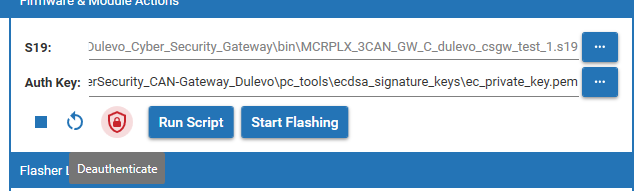
After that the status bar shows Module deauthenticated, the icon in the Authentication column is a lock again and the module actions are blocked. If you close the Flasher, all authenticated modules are deauthenticated.
Flash a Signed Image
- Authenticate the module
- Check the path in
S19:. WithSelect Other .s19 Fileyou can select another image, for example the file you exported on the S19 Information and Signing - Press
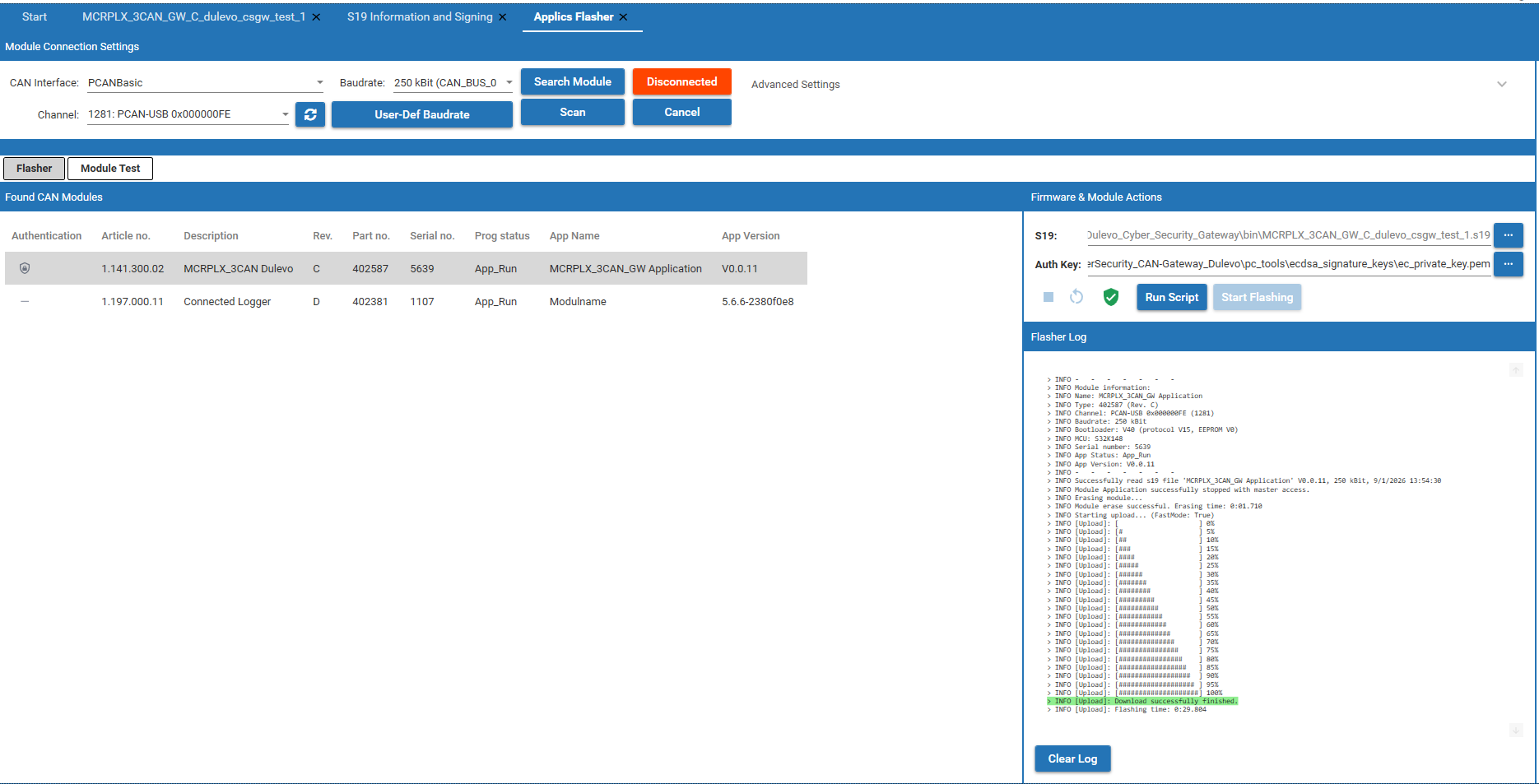
Start Flashingand watch theFlasher Log
After the flashing the module checks the signature before it starts the application. If the signature does not fit to the public key in the module, the module writes a secure boot error and stays in the bootloader, see Troubleshooting.


If you flash an unsigned image on a cybersecurity module, the transfer works but the application does not start. Check the state of the package on the S19 Information and Signing page before you flash.
What Happens in the Background
The authentication is a challenge-response over CAN with the UDS authentication service 0x29:
- Applics Studio addresses the module and asks for a challenge
- Module sends a random challenge back, as a multiframe
- Applics Studio signs the challenge with the authentication private key
- The signature goes back to the module
- The module checks it with the authentication public key it has stored and unlocks the access
While a module is authenticated, Applics Studio asks the module for its authentication status in the background and checks it again after a reconnect or a power cycle. So a module that lost its authentication is shown as Not authenticated again and the buttons are blocked.
The countdown is a local timer of 1 hour that starts with the successful authentication. Applics Studio does not read the real remaining time out of the module, so the countdown is only an approximation of the timeout that the module itself uses.