Table of Contents
About
This chapter should give a short overview about the process of the migration of a Developers Studio project into Applics Studio.
It is necessary to have Developers Studio with at least the version V1.41.24 and Applics Studio with at least the version V5.2.0 installed for using the migration feature.
Restrictions
Currently, it is not possible to continue developing the migrated project with the GP. That is caused by the different way how Eagle and GP saves their circuit diagram in the .sch file. Therefore, GP is not able to read a .sch file which was created by eagle. Nonetheless, the graphcode from the old Developers Studio project still gets migrated and can get compiled by Applics Studio.
In addition, changing the application name or software version via Applics Studio is not possible by default.
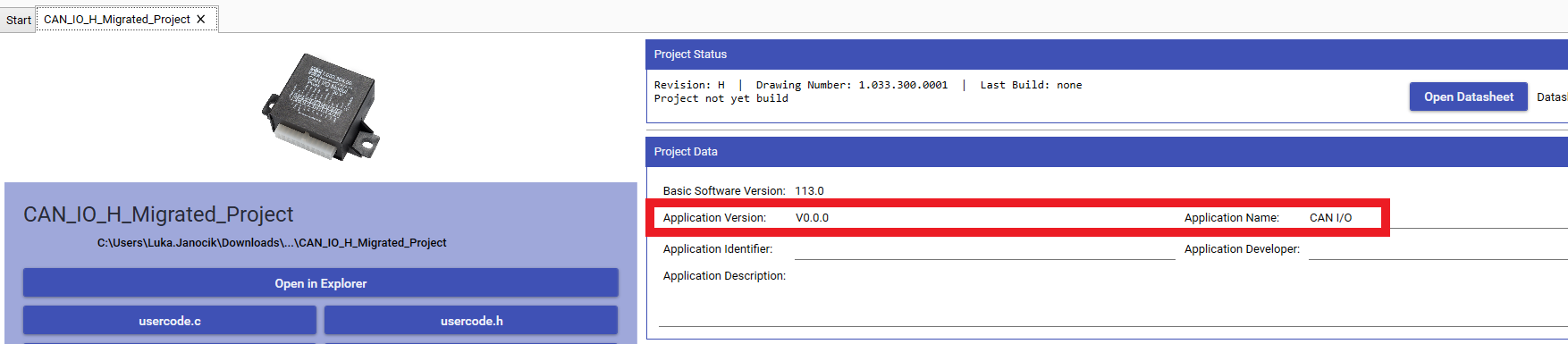
This functionality must be enabled manually within the usercode_init() method in the usercode.c file. A note in the file will indicate which methods need to be called to re-enable the ability to modify the module name and software version through Applics Studio:
	/*
		----------------- Migration Note -----------------
		If you want to adjust the module name or the software version via Applics Studio you need to include the following:
		//(void)strncpy(EEPROM_Modulname, (const uint8_t*)APPL_MODULE_NAME, 30);
		//(void)strncpy(EEPROM_SW_Version, (const uint8_t*)APPL_SW_VERSION, 20);
		//modulename_change = TRUE;
	*/
How to migrate the Developer Studio project
The following video shows how to migrate a Developers Studio project into an Applics Studio project.
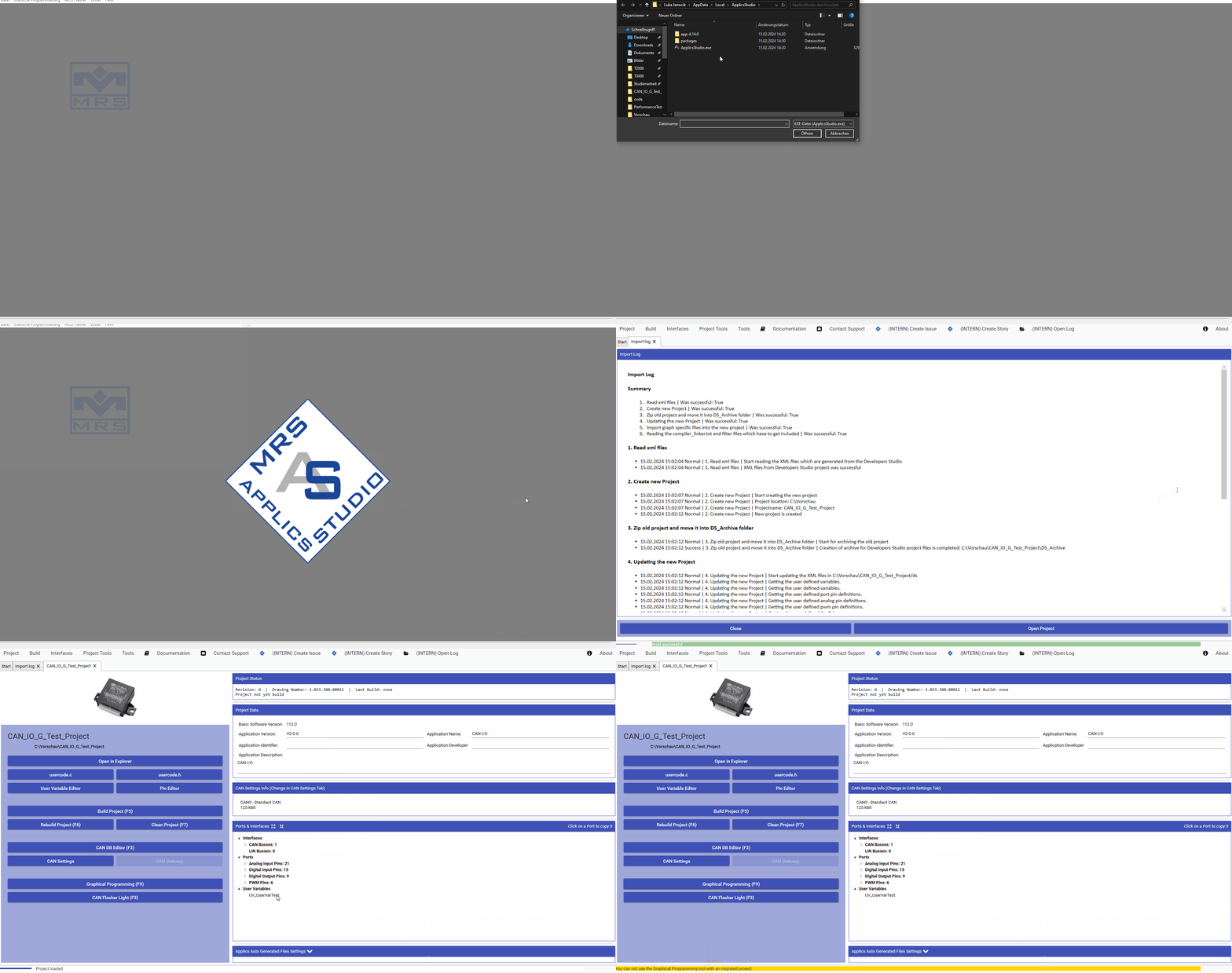
Start Developers Studio and navigate to the menu point Graphical Programming. In the collapsed list click Migrate project to Applics.
A file dialog will open in which you need to search for your project which should get migrated. Inside this project select the .sch File.
After the selection it will come up another file dialog in which you need to select the ApplicsStudio.exe.
The executable ApplicsStudio.exe can normally be found in the ApplicsStudio folder which is located in the local app data. For navigating to the local app data, just type into the search bar of the file explorer %localappdata%.
At this point select a directory for a newly created project or replace the current Developers Studio project directory with the new migrated Applics Studio project.
Once Applics Studio has finished the migration, the Import Log will be opened with all necessary processes documented inside. The log is located in the new project ./DS_Archive/ImportLog.md.
From this point you can either close the log or open your new Applics Studio project.
As displayed in the video, you will not be able to open the GP anymore within a migrated project.