Table of Contents
Introduction
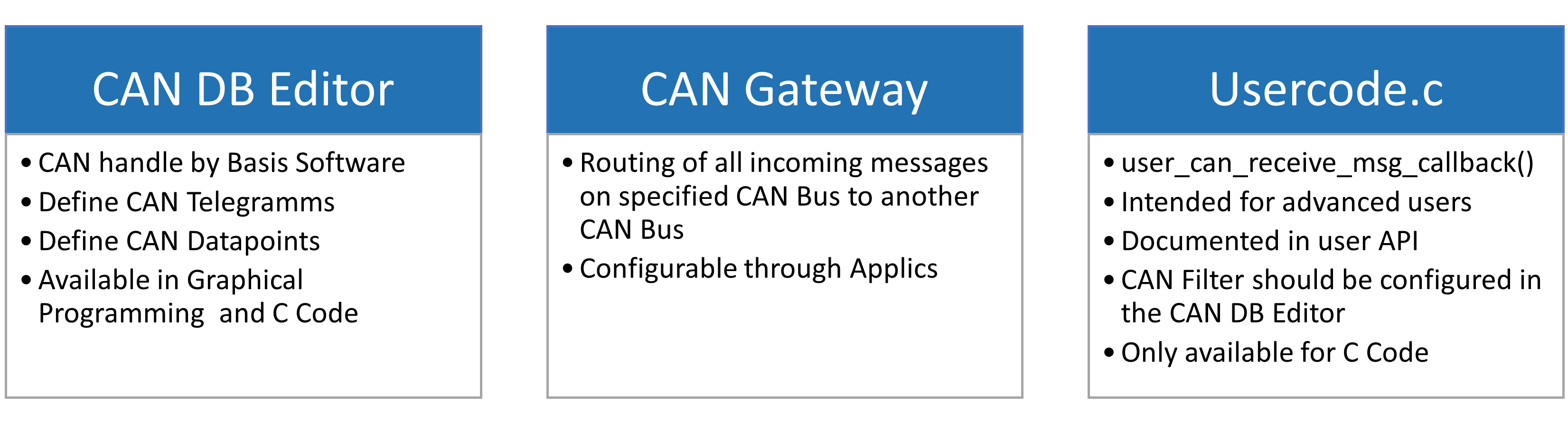
This chapter will give you an overview and information on how to configure CAN Bus communication. There are different possibilities to setup a CAN Bus communication with MRS Modules.
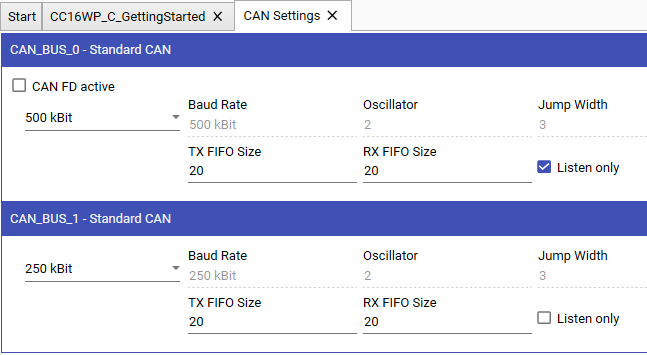
CAN Settings
Here you can select the baudrate for the CAN Bus. The new baudrate will be used by the module after the first build and flash is completed.
Baudrate
You can select from a list of predefined baudrates or define your own baudrate.


The baudrate of new modules by default is 125 kbits/s.
Custom Baudrate
If the required baudrate is not available, it is possible to define a custom baudrate in the User-Def Baudrate Window. Already defined custom baudrates can be found at the bottom of the settings drop-down menu.
Baudrates are defined by the following Parameters:

- Jump Width
- Prescaler
- Time Segment 1
- Time Segment 2
- Propagation Segment
If you already have all the parameters available, simply enter them in their respective input field.

 Be careful as the baudrate parameters depend on the external oscillator frequency on the hardware. For more information see the corresponding datasheet.
If a user defined baudrate is choosen for CAN Bus 0, the bootloader baudrate is set to the last used predefined baudrate.
Since Applics / BSW V4.16.0, we changed the registers used to hold the timesegments which increased the register size from 3 to 5 bit. Since the sample point position is calculated as
Sample point = ((Time_Segment_1 + 1) / (Time_Segment_2 + Time_Segment_1 + 1)) * 100
, the biggest possible sample point previously was
((7 + 1) / (2 + 7 + 1)) * 100 = 80%
with 7 being the biggest possible value for TSEG1 and 2 being the lowest possible value for TSEG2.
With the new changes, the biggest sample point can now be calculated as
((31 + 1) / (2 + 31 + 1)) * 100 ~ 94%.
with 31 being the biggest possible value for TSEG1. Additionaly, the resolution of possible sample points was greatly improved.
FIFO
You can also alter the TX/RX FIFO Size in the CAN settings if you need to (most likely you don’t!). This determines how many messages for send (Tx) and receive (Rx) can be buffered by the basic software of the module. This can be needed in special circumstances e.g.:
- high bus load with especially in gateway applications
- you notice CAN Frames are lost or missing
Listen Only
The module enters the listen only mode for the selected CAN interface by activating the checkbox Listen only. In this mode, the transmission is disabled, the error counters are frozen, and the module operates in a CAN Error Passive mode. Only messages acknowledged by another CAN station will be received.
Listen Only Mode is supported from Basic Software Version 3.10.0.
CAN DB Editor
For CAN bus communication it is necessary to define CAN Telegrams and CAN Datapoints with the CAN DB Editor. Click Open CAN DB Editor (F2) to open it. The CAN DB Editor is divided into two parts: the CAN Telegramms and the CAN Datapoints.
You can also import and export this data to common formats like .sym and .dbc.
Create CAN Telegramm
A CAN Telegramm / CAN Block is a CAN Frame which is defined by a 11- or 29-Bit Identifier, a name and the payload from 0 to 8 bytes. Each CAN Telegramm can be assigned to a specific CAN bus and configured for receiving or sending. A new telegram can be added by pressing the  button in the telegram toolbar. The properties of the Telegram is modified in the properties window on the right.
For more information about the columns and properties place the mouse button over the header and the description appears.
Create CAN Datapoints
A CAN Data Point is variable inside a CAN Telegram, which is defined by a number of bits within a 8 Byte array. It is possible to have multiple CAN Data Points within the same CAN Telegram as long as you have bits to be attributed. Similar to telegrams a new Data Point can be add by pressing the button in the Data Point toolbar. A Data Point will always be asigned to the currently selected Telegram (you may change that later if needed). Furthermore, you can select a desired Bit Length in the toolbar before adding a new Data Point. The next available Bit Start and the selected Bit Length is asigned to the newly created Data Point.
Data Points are prefiltered based on the currently selected Telegram. Cheking the “Show all Data Points” Checkbox allows you to remove the filter, allowing you to see all existing Data Points.
CAN Multiplexer
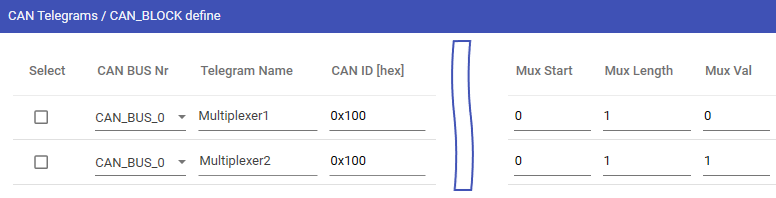
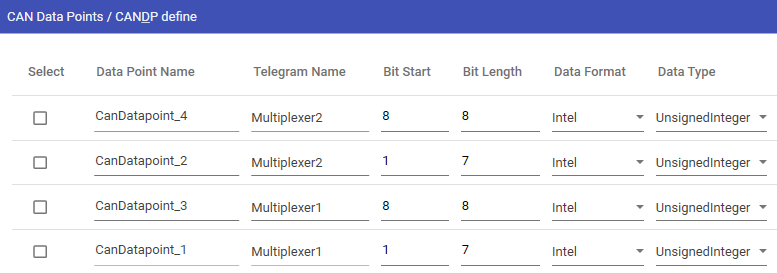
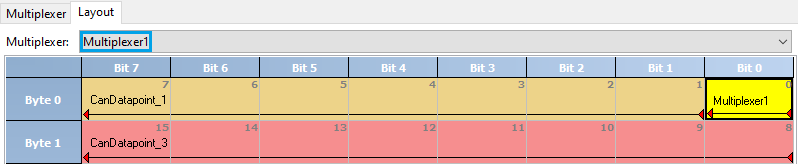
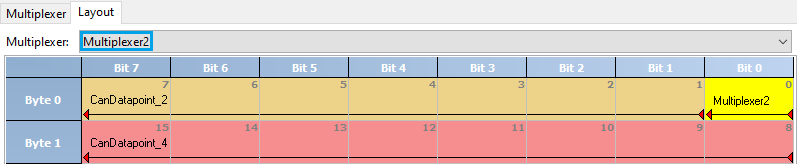
To transmit different data sets within a CAN-Frame with the same CAN-ID, so called multiplexer can be defined. Multiplexers are specially bits in the data bytes whose content identifies the meaning of the remaining data bytes.
Definition and layout of a multiplexer is described in the following example:
Graphical layout visualization of the bit positions inside a dataframe including multiplexer bits:
Export and Import Database
Option to Import or Export the defined CAN Telegrams and CAN Data Points are saved in database symbol-file. This database can be imported and exported to use it by an external software tool.
Export Sym
After definition of Telegrams and Datapoints a symbol-file can be exported by pressing the  button. This can be used by other tools e.g “PCAN-Explorer”.
During the export process the window
Sym Export will appear. Here it is possible to change the transmit direction by selecting Yes or No. This can be useful when working with tools like “PCAN-Explorer.
Import Sym and Dbc
Using a predefined symbol- or dbc-File is also supported. The import process can be started with the  button. Import needs to be confirmed with
Check and Save.
View all Telegrams
Pressing the  button in the telegram toolbar at the top opens a separate view that lists all telegrams together with their full set of properties. In this view you can add new telegrams by clicking the button, modify the values of existing telegrams directly, or delete a telegram using the inline trash icon.
View all Datapoints
Similar to the Telegram view, pressing the button in the datapoints toolbar at the top opens a separate view that displays all datapoints with their full set of properties. Within this view you can add new datapoints by selecting the telegram to which the datapoint should belong, choosing the appropriate bit length, and then clicking the button. Existing datapoint values can be edited directly, and datapoints can be removed using the inline trash icon. Additionally, you can filter the list of datapoints by telegram name.
Additional Features
Pressing the  button inverts Send / Receive for all telegrams. Telegrams / Data Points can be deleted by pressing the inline trash icon of the respective Telegram / Datapoint. Pressing the
 button in the toolbar deletes all existing Telegrams / Data Points. Telegrams can also be filtered by using the searchbar in the telegram toolbar.
CAN Gateway
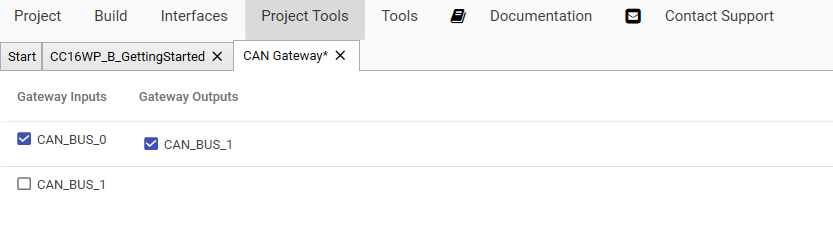
Click the button Open CAN Gateway to open the gateway settings. Now the Gateway can configured by activating the checkbox for the Gateway Inputs and Gateway Outputs.
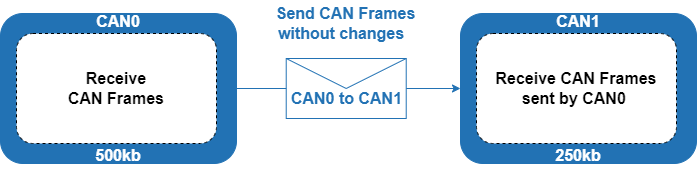
This example will send all messages received on CAN Bus 0 without any changes directly to CAN Bus 1.